Team & permissions
Start on your own, then delegate as your team grows. Invite members and work together with permissions assigned by role.
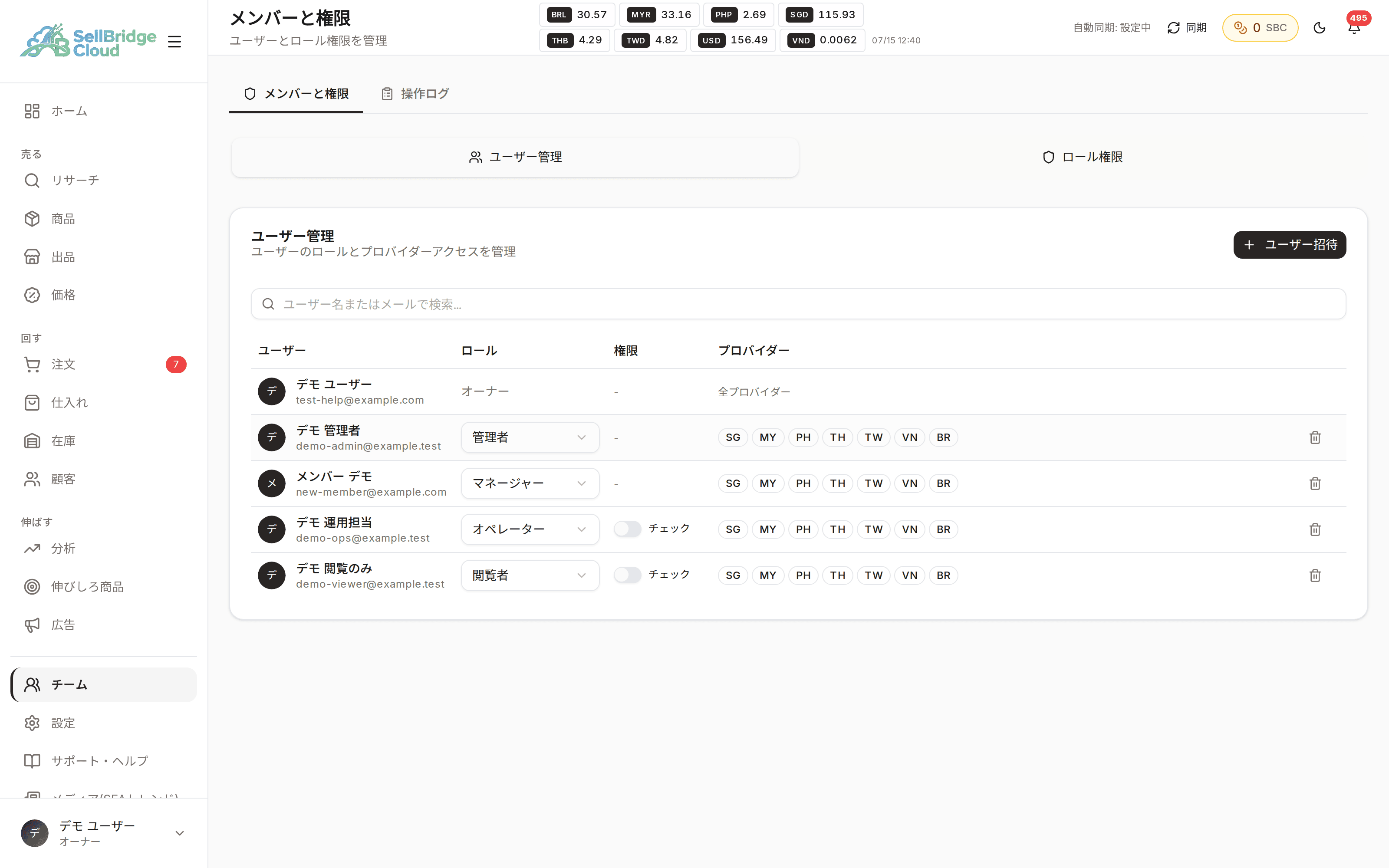
Add people without sharing accounts
When one account is shared, you can’t tell who did what, and offboarding gets difficult. In SellBridge each member gets their own account, and you can separate what each role can see and do.
- Issue an account for each member
- Set permissions by role, such as owner, admin and operator
- The number of members you can add depends on the plan
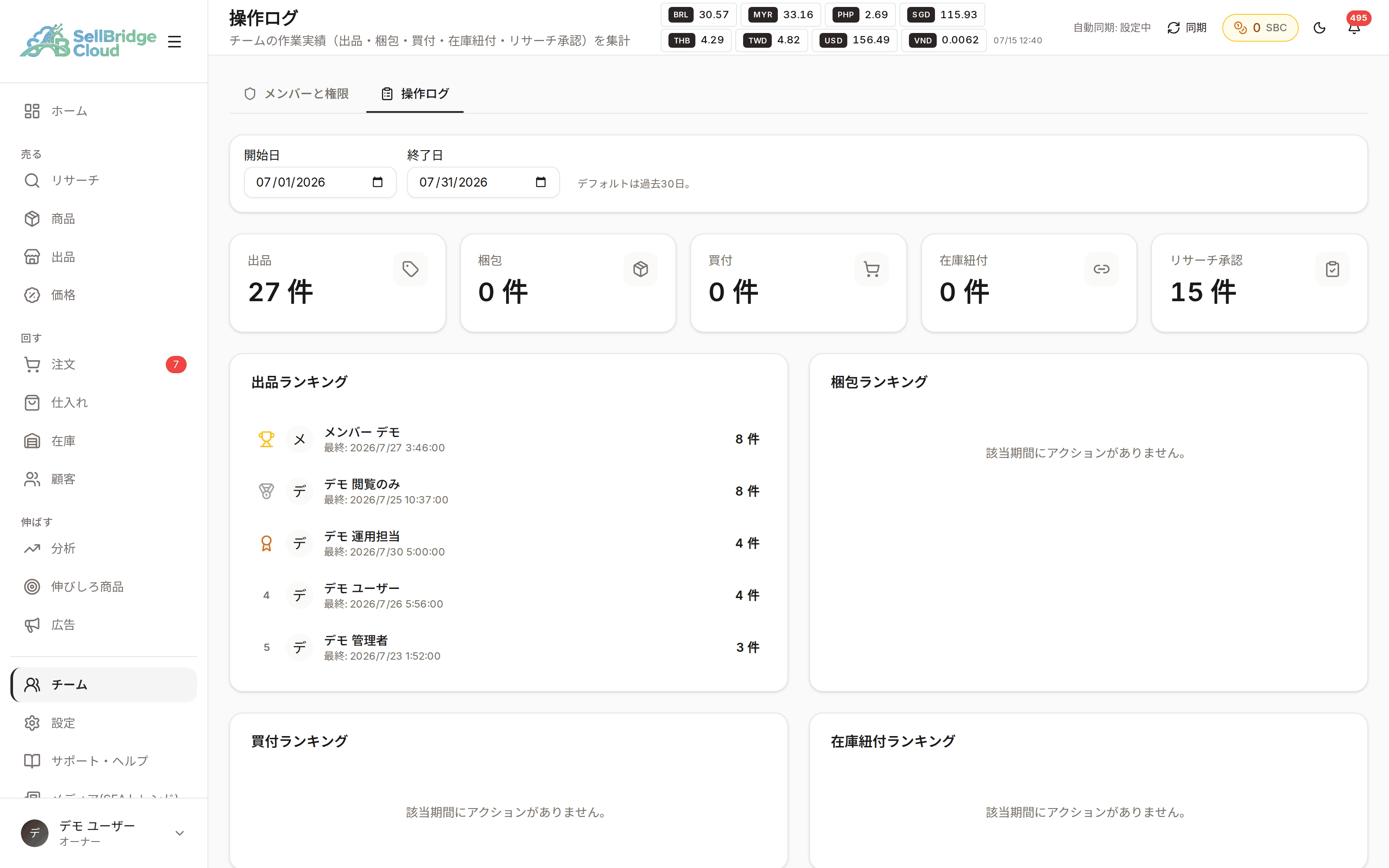
See who did what and when, afterwards
Actions such as changing a price or stopping a listing are recorded. When something isn’t as expected, you can trace back when and whose action caused it.
- Key actions are recorded in the action log
- Review the records in a list later
- Permission settings are available from the Standard plan
Availability by plan
The team screen and action log are available on every plan. Role-based permission settings are available from the Standard plan.
| Feature | Free | Basic | Standard | Premium |
|---|---|---|---|---|
| Members you can add | 1 member | 2 members | 5 members | 50 members |
| Member & permission management | − | − | ○ | ○ |
| Action log | ○ | ○ | ○ | ○ |
“−” means the feature is not available on that plan. See the pricing page for the latest prices and plan details.
Frequently asked questions
- How do I add members?
- Invite them by email address from the team screen. Once the invitee creates an account, they join as a member.
- What kinds of roles are there?
- There are roles such as owner, admin, manager, operator and viewer, and each page’s view and edit access depends on the role.
- What happens to members if I downgrade my plan?
- Existing members won’t lose access right away even if you exceed the limit, but you won’t be able to add new members.
More features
Combine SellBridge features to connect your entire cross-border operation.
Make cross-border operations simpler.
Start on the Free plan — no credit card required.